

Ever tried snapping the perfect selfie only to be greeted by a blurry mess? If your iPhone 15 front camera has decided to take a vacation from clarity, you’re not alone. Many users find themselves wondering why their high-tech device is serving up photos that look like they were taken through a foggy window.
Fear not! This isn’t a sign that your phone has lost its vision or that your face has mysteriously turned into a Picasso painting. There are several reasons for that blurry lens, and they’re often simpler than you might think. Let’s dive into the world of iPhone camera quirks and uncover the secrets to reclaiming your picture-perfect moments.
Common Causes of Blurry Front Camera on iPhone 15
Blurry selfies can frustrate iPhone 15 users. Several factors contribute to this issue, and addressing them can lead to clearer images.
Lens Obstructions
Obstructed lenses often cause blurry images. Dust, fingerprints, or smudges prevent light from entering the camera properly. Regular cleaning with a microfiber cloth keeps the lens clear. Users should check for any foreign material before taking photos. A simple inspection can significantly enhance image quality.
Software Issues
Software glitches frequently affect camera performance. Outdated software may cause compatibility problems, leading to blurry photos. Users should ensure their device is running the latest version of iOS. Restarting the camera app can resolve temporary issues. Resetting settings or performing a factory reset also fixes persistent software bugs.
Troubleshooting Steps
Several effective steps can improve the clarity of the iPhone 15 front camera. By addressing common issues, users can capture sharper selfies.
Cleaning the Camera Lens
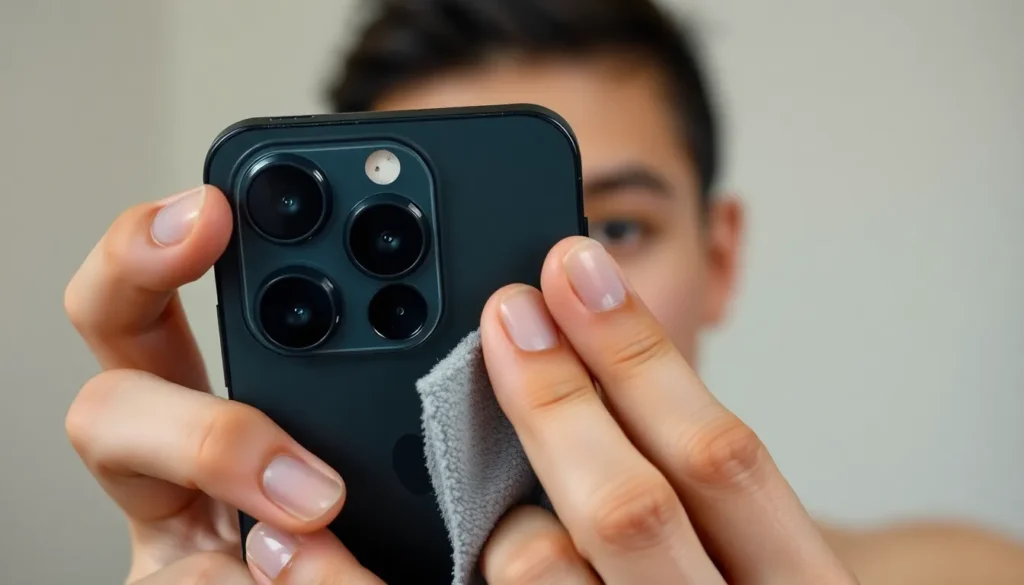
Regular cleaning prevents blurry photos. Dust, fingerprints, or smudges can obscure the lens, leading to unclear images. Use a microfiber cloth to gently wipe the lens, ensuring a clear path for light. Avoid using rough materials as they can scratch the lens. Clean the area around the lens too, since debris might linger there. Maintain habitually checking the lens for obstructions to ensure optimal performance.
Restarting the Device
Restarting the device often resolves temporary glitches. Power off the iPhone 15 completely and then turn it back on. This simple reset clears cache and refreshes background processes, which can enhance camera functionality. Users frequently overlook this step, but it can make a significant difference. Always ensure all updates are installed prior to a restart, as this may further enhance performance. Simple restarts often lead to clearer photos.
Updating iOS
Keeping iOS up to date is essential for optimal camera performance. Each update often includes fixes and improvements that positively affect the camera’s functionality. Check for updates by navigating to Settings, then General, and selecting Software Update. Installing updates ensures compatibility with new features and enhances existing functionality. Users should periodically check for updates to avoid missing important enhancements. Regularly updating iOS plays a crucial role in resolving various camera-related issues.
Advanced Solutions
Addressing blurry selfies on the iPhone 15 may require more advanced techniques. Consider these options if previous suggestions haven’t resolved the issue.
Resetting All Settings
Resetting all settings can restore the iPhone’s intended configurations. Users can navigate to Settings, then select General, followed by Transfer or Reset. This process won’t erase personal data; it resets system preferences like display settings and Wi-Fi passwords. After completing the reset, it’s beneficial to check the front camera’s performance again. Performing this step might resolve any lingering software-related issues affecting image clarity.
Restoring to Factory Settings
Restoring to factory settings represents a more drastic solution, reverting the iPhone to its original state. Before proceeding, users should back up important data via iCloud or iTunes. To initiate the restore, go to Settings, select General, and then Transfer or Reset. Once the device resets, it will require reconfiguration. Testing the camera afterwards can indicate whether this step improved the front camera’s clarity. Restoring factory settings often resolves deep-seated software issues inhibiting camera performance.
When to Seek Professional Help
Professional help may be necessary if blurry selfies persist after trying basic troubleshooting techniques. Signs that indicate a need for expert attention include noticeable hardware damage. A shattered or cracked camera lens can significantly impair image quality.
Consider consulting a technician if the device suffers from water damage. Moisture inside the camera can lead to blurred images and requires specific expertise to resolve. It’s crucial to share concerns if the software resets or updates don’t yield improvements.
Unusual software behavior might also warrant attention. Frequent app crashes or unexplained errors may signal deeper issues with the iPhone that require professional diagnostics. A certified repair service can conduct comprehensive assessments not always accessible through user attempts.
In instances where individuals suspect manufacturing defects, contacting Apple’s support team proves beneficial. They can provide insights or options like warranty service or replacement, which can alleviate ongoing camera issues.
Seek a professional evaluation for repairs if the camera consistently fails to focus or captures distorted images. Understanding the root cause requires advanced tools and knowledge that only certified technicians possess. Taking proactive steps ensures that users swiftly address persistent problems and return to taking clear selfies.
Blurry selfies on the iPhone 15 can be frustrating but addressing the common causes can lead to clearer images. Regular cleaning of the lens and keeping the software updated are simple yet effective steps. For persistent issues after trying these solutions, advanced techniques like resetting settings or seeking professional help may be necessary.
By following these guidelines users can enhance their photography experience and enjoy the full capabilities of their device. Clear selfies are just a few steps away.