

Picture this: you’re in the middle of a crucial meeting, and your phone’s silent mode is working overtime, turning it into a stealthy ninja. Suddenly, you miss that important call from your boss or that life-changing text from a friend. Turning the ringer back on your iPhone might seem like a simple task, but it’s all too easy to forget how to do it—especially when you need it most.
Understanding iPhone Ringer Settings
Ringer settings play a crucial role in ensuring users receive important calls and notifications. Knowing how to manage these settings enhances communication and prevents missed connections during critical moments.
Importance of the Ringer
The ringer allows users to stay informed about incoming calls and messages. It ensures that notifications sound off when needed, providing real-time updates. Maintaining an active ringer prevents the frustration of missed communications, especially in professional settings. It’s critical for users to adjust the ringer to match their environment, ensuring they remain reachable. In addition, the ringer can serve as an alert system for emergencies, making its functionality vital.
Different Ringer Modes
iPhones offer various ringer modes that cater to different user needs. The standard ringer setting produces sounds for calls, messages, and alerts. Users can switch to vibrate mode, allowing discreet notifications without audible alerts. Silent mode, on the other hand, mutes all sounds, rendering the device completely quiet. Each mode provides distinct benefits and suitable contexts for use, such as meetings or social gatherings. By understanding these modes, users can effectively manage their notification preferences.
Step-by-Step Guide to Turn On the Ringer
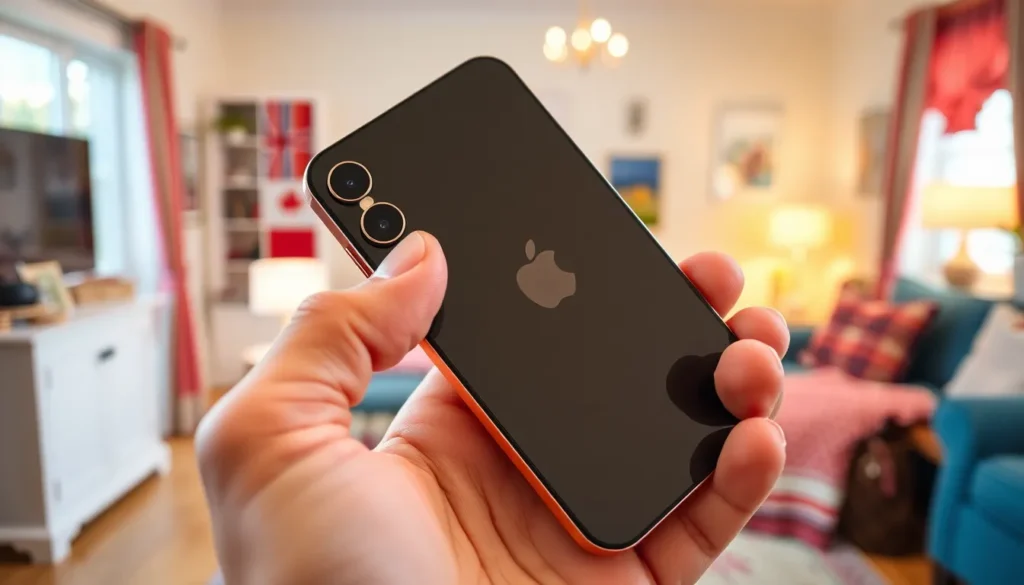
It’s crucial to know how to turn the ringer on an iPhone to stay connected.
Using Physical Buttons
Flipping the silent switch on the side of the iPhone is the quickest method. This toggle, located above the volume buttons, must show orange when in silent mode. When the switch is flipped back, the ringer activates. Pressing the volume up button also helps restore sound. Adjusting this button until it reaches a suitable volume level enables calls and alerts to be heard. Users can check the screen for a bell icon that confirms activation.
Through Settings Menu
Adjusting the ringer through the settings menu provides additional control. Opening the Settings app starts the process. Tapping “Sounds & Haptics” reveals the ringer and alert section. By dragging the “Ringer and Alerts” slider upwards, users increase volume accordingly. Ensuring that “Change with Buttons” is enabled allows for easy adjustments using physical buttons. These steps guarantee that notifications will come through effectively, especially during important moments.
Troubleshooting Common Issues
Users may sometimes encounter issues with their iPhone ringer not functioning properly. Several factors can contribute to this problem. First, the volume might be set too low, preventing sounds from being heard. Adjusting the volume with the physical buttons usually resolves this.
Checking sound settings can also help. Navigating to the Settings app and selecting “Sounds & Haptics” reveals the ringer and alerts slider. Increasing this slider ensures sound notifications are audible. If these steps don’t work, restarting the iPhone may resolve minor glitches.
Ringer Not Working
A defective ringer may lead to missed calls. Hardware problems could cause this issue. Inspecting the physical ringer button is crucial; it may be stuck or damaged. If it appears functional but still doesn’t work, testing with headphones could help isolate the problem. Sometimes, a software update can fix bugs affecting sound. Accessing the Settings app and tapping “General” followed by “Software Update” checks for updates.
After ensuring the device is updated, resetting all settings can clear any lingering issues. This action prompts the iPhone to revert to original settings, restoring sound functionality.
Checking for Do Not Disturb Mode
Do Not Disturb mode silences calls and notifications, leading to potential confusion. Enabling this mode prevents interruptions, which may inadvertently be activated. To check its status, accessing the Control Center is necessary. A crescent moon icon indicates activation. Tapping this icon disables Do Not Disturb and resumes normal notification sounds.
Alternatively, navigating to the Settings app and selecting “Do Not Disturb” offers further control. Here, users can customize settings, such as scheduling or allowing calls from specific contacts. Ensuring Do Not Disturb is disabled allows important notifications to come through promptly.
Tips for Managing Your Ringer Settings
Managing ringer settings on an iPhone enhances communication efficiency. A few adjustments make it easier to stay connected during important moments.
Customizing Ringtones
Customizing ringtones personalizes the user experience. Different ringtones can alert users to specific contacts or apps, making it easier to prioritize calls and messages. To set a custom ringtone, navigate to “Settings,” select “Sounds & Haptics,” and choose “Ringtone.” Users can select from the default options or purchase new tones from the iTunes Store. Assigning distinctive ringtones to key contacts ensures recognition of important incoming calls, preventing missed opportunities.
Volume Control Options
Volume control options assist in managing ringer levels effectively. Adjusting the ringer volume can be done by using physical buttons or through the Settings app. Pressing the volume up button raises the ringer sound, while the “Change with Buttons” feature allows for quick adjustments. Users can also find the ringer slider under “Sounds & Haptics,” ensuring the volume stays appropriately set for different environments. Utilizing these controls sets a comfortable volume that fits personal and professional situations.
Turning the ringer back on an iPhone is essential for staying connected in both personal and professional settings. With simple methods at their fingertips users can quickly adjust their settings to ensure they don’t miss important calls or messages. Understanding the various ringer modes and how to customize them enhances the overall user experience.
By following the outlined steps and troubleshooting tips users can maintain optimal notification settings. Customizing ringtones and managing volume levels allows for efficient communication tailored to individual needs. Staying informed and responsive is just a few taps away, ensuring that important notifications are never overlooked.