


Imagine this: you’re trying to make a call, but your iPhone decides it’s on an eternal SOS mission. Panic sets in as you wonder if your phone’s auditioning for a role in a disaster movie. Fear not! Getting your iPhone off SOS mode isn’t as complicated as deciphering hieroglyphics.
Understanding SOS Mode on iPhone
SOS mode serves as a safety feature on iPhones, designed to help users contact emergency services swiftly. This mode can trigger automatically or manually, depending on the circumstances.
What Is SOS Mode?
SOS mode allows iPhone users to call emergency services without needing to navigate through menus. Activating this feature shows a red emergency slider and gives users quick access to emergency contacts. It’s crucial to know that this mode also disables some functionalities, such as cellular service for non-emergency calls. Users find SOS mode especially useful in urgent situations where every second counts.
When Does SOS Mode Activate?
SOS mode activates through various triggers, including pressing and holding the side button and volume buttons simultaneously. Unintentional activation can occur when the buttons are pressed accidentally. Users might also enter SOS mode if location settings detect a lack of cellular signal for regular calls. It’s essential to familiarize oneself with the activation process to avoid unintended interruptions.
Common Reasons for iPhone Stuck in SOS Mode
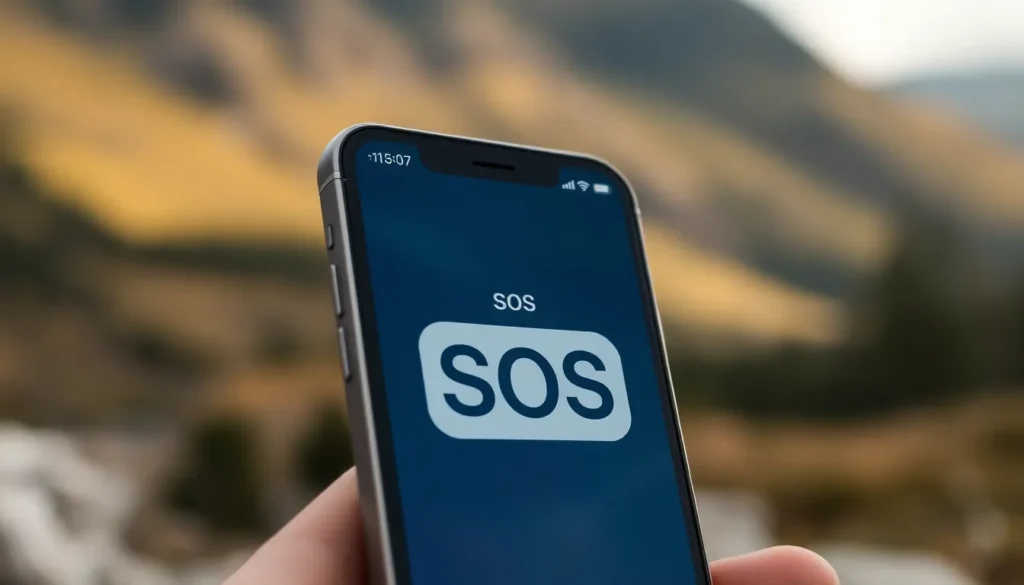
Users can experience SOS mode due to several common factors. Understanding these reasons helps in addressing the issue effectively.
Network Issues
Network problems often result in an iPhone entering SOS mode. Signal loss occurs when the device cannot connect to a cellular network. This often happens in areas with weak or no service, such as remote locations. Users may find their phones indicate SOS only, preventing non-emergency calls. Checking the cellular signal strength can reveal the issue, allowing users to identify if it’s a temporary outage. Restarting the device might help reestablish the connection.
Software Glitches
Software glitches frequently cause unexpected behavior in smartphones. An iOS update that didn’t complete properly can lead to such issues. Bugs in the software might interfere with normal operations, including network connectivity. Performing a forced restart can often resolve these glitches. This step might restore functionality and exit SOS mode. Users should ensure their iPhone’s software is up to date to mitigate such problems. Regular updates help minimize potential bugs and enhance overall performance.
Step-by-Step Guide to Get Your iPhone Off SOS
Resolving SOS mode on an iPhone can be straightforward with the right steps. Follow these methods to regain normal functionality.
Restarting Your iPhone
Restarting an iPhone often clears temporary issues. To do this, press and hold the side button along with the volume up or down button until the power off slider appears. Slide it to turn off the device. After the device powers down, press the side button again until the Apple logo appears. This simple action may help restore normal service and exit SOS mode effectively.
Checking Cellular Settings
Cellular settings impact connectivity significantly. Begin by navigating to Settings, then selecting Cellular. Ensure Cellular Data is enabled and check if the device is set to the correct network. If cellular settings look fine, toggle Airplane Mode on and off to refresh the connection. This often resolves issues with network detection and can help the iPhone exit SOS mode.
Updating Your iPhone
Keeping the iPhone updated is essential for optimal performance. Heading to Settings, select General, and then tap Software Update. If an update is available, download and install it. Ensuring the device runs the latest iOS version helps minimize software-related issues. Regular updates address bugs and improve overall functionality, including SOS mode.
Alternative Solutions
Consider additional methods to exit SOS mode on an iPhone when standard solutions don’t work. Various approaches can help restore normal functionality.
Resetting Network Settings
Resetting network settings often resolves connectivity issues causing SOS mode. To perform this action, navigate to Settings, select General, and tap Transfer or Reset iPhone. From there, choose Reset Network Settings. After this reset, the device reverts to factory network configurations. Expect to re-enter Wi-Fi passwords and other network-related information. This method helps clear any corrupted network settings that might interfere with signal detection.
Restoring iPhone via iTunes
Restoring the iPhone through iTunes serves as another effective solution if prior methods fail. First, connect the device to a computer with the latest version of iTunes installed. Open iTunes, select the iPhone icon, and choose Restore iPhone. This process erases all data on the device, so backing up important files beforehand is crucial. Once the restoration completes, the iPhone starts fresh, often resolving persistent issues, including SOS mode activation problems.
Getting an iPhone out of SOS mode doesn’t have to be a daunting task. By understanding the potential triggers and following the recommended steps, users can quickly regain access to their device’s full functionality. Whether it’s checking network settings or performing a simple restart, these solutions can effectively resolve the issue. Staying informed about software updates and device features also plays a crucial role in preventing future occurrences. With these strategies in hand, users can navigate their iPhone with confidence and ease.